¶ Edit Schedule
To activate a script for automatic execution, one has to use the tool OEEUpdateWinServiceEditor to add it to the set of scripts
that are automatically run by the Windows Service.
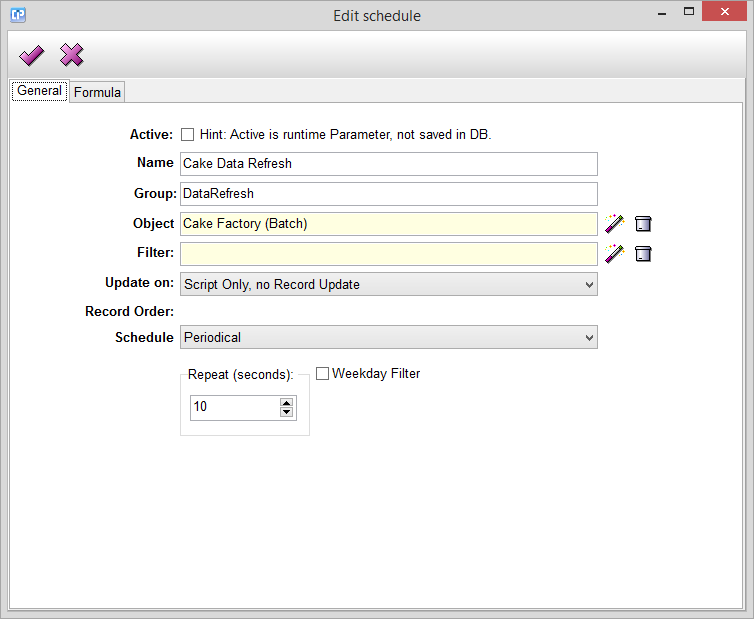
- Active - Mark the small box, if you want your script to be activated.
- Name - It is compulsory to give a name to your new schedule. This name, together with the group is going to appear on
your Update Service list.
- Group - The scripts can be organized into groups for a better overview. Once the assignment to groups is done in the
properties of the individual scripts, the script appears in the respective tab page in the overview screen. Also with the help
of this feature, you have the opportunity to adjust on the server which groups you want to run and thus run every active
schedule in them.
- Object - By clicking on the
 button, the Select Object Dialog will appear. From here, you can select the object
from which you want to import your data to your schedule. You can cancel your selection with the help of the button.
- Filter - By clicking on the button, the Select Filter Dialog will appear. From here, you can choose or create a filter
which is going to filter your data from your selected object.
- Update on - This feature lets you to choose from different versions regarding the record(s) on which you want to activate
your formula. These are: - All records - the formula is invited on all records
- First record - the formula is invited only on the first record
- Last record - the formula is invited only on the last record
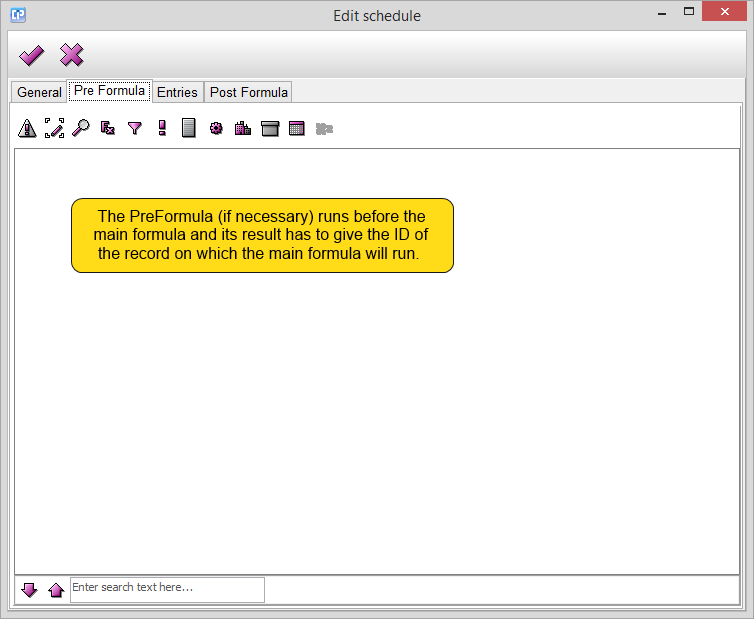
- Single record, DataID specified as the Result of the PreFormula - This formula as well, is invited on a single record.
This record is defined by its ID which is gained from the result of the PreFormula. - Script Only, no Record Update - the formula runs but without making any modifications on the records
- Schedule - With the help of this feature you can specify the time period according to which you want to run your
formula. You have three possibilities: - Daily - Here you can specify the days on which you want your formula to be ran. This can be done by selecting the
desired days from the Weekday Filter. You can also specify the time in hours and minutes. - Periodical - By using this feature, your formula will be activated repeatedly in every second (you have to specify it) of an hour.
You can also use the Weekday Filter if necessary. - Hourly - Through this feature you can run your formula in every hour and every minutes you have specified here.
The Weekday Filter can also be used.
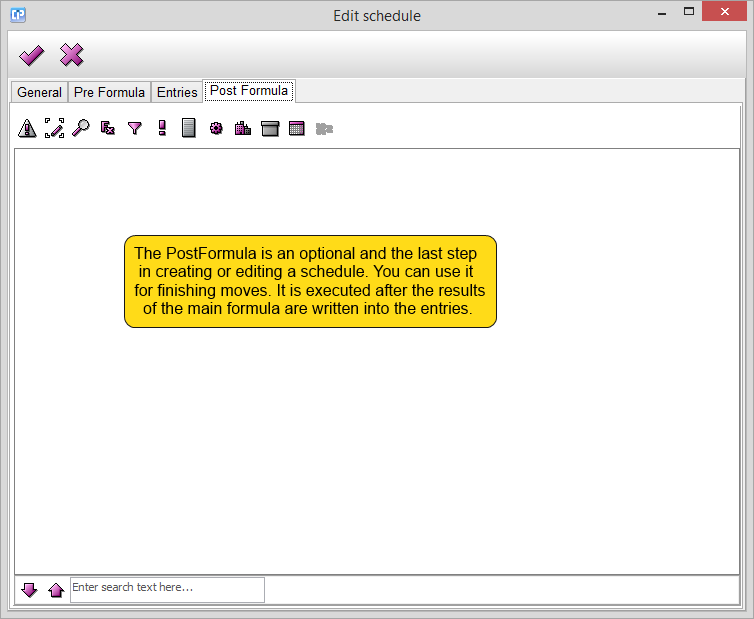
The next steps concern the building up of the formulas. To ease this process, do not forget to use the formula editor.
As you can see on the screenshot below, the next step is creating the main formula:
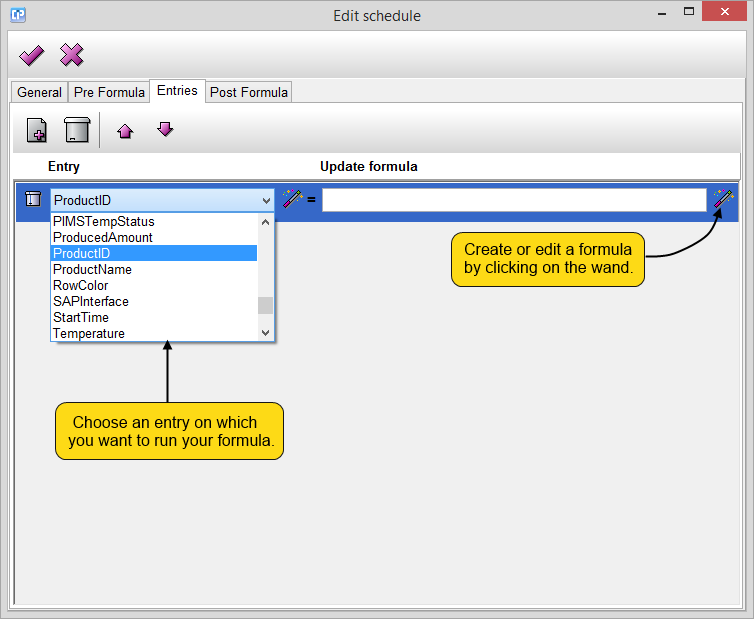
- a formula is created and ran for each entry
- the results are written into the given entries.
You can add a new entry and create a new formula with the help of the  , while you can delete all of them at once with
 .
You can move your selection with the  and
 buttons.