¶ Label
As its name shows, labels give you the opportunity to label your DBForm.
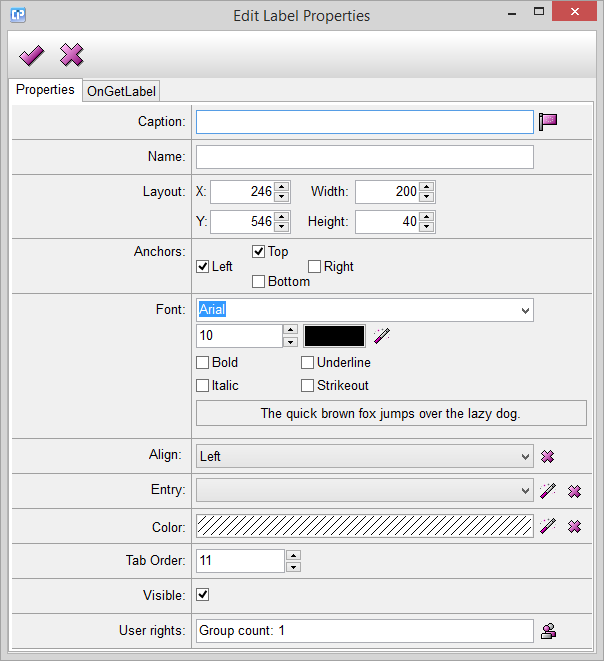
Caption: This feature enables you to add a text to your label. With the help of the  you can open the
Localization window.
Name: This feature helps you to give a name to your label. The name will not be visible on your label.
Layout: The numbers near X and Y help you to adjust the exact coordinates of placing your label.
The Width and Height options refer to the length of your label's sides.
Anchors: As its name shows, this feature anchors the chosen sides of your label (left, top, bottom, right).
This means that if you increase or decrease the background of your DBForm, the anchored sides of the
label will follow the movement of the respective side of the DBForm.
Font: With the help of this feature you can adjust the font of the caption. You can change the font type,
size, color and style.
Align: This feature modifies the position of the caption within your label. You can choose from left, right
and center. Cancel your modification with the help of the  button.
Entry: You can add an entry to your label.
Click on the  button and choose an entry from your entry list.
Cancel your modification with the help of the button.
Color: This option helps you to change the background color of your label.
Click on the button and open the color dialog to choose your color from a complete palette.
Cancel your modification with the help of the button.
Tab Order: This feature enables you to specify the tab order, which can be helpful when you want to reach
one of your DBForm components with the help of the Tab button.
Visible: With the help of the visibility feature, you can decide whether you want your label to be visible or not.
User Rights: With the help of this option you can decide who should have an access to a label.
Make a click on the  button and open the User Management window.
¶ Formula
With the help of the OnGetLabel feature, you can create a formula with the help of which you can change
the caption of your label. To ease this process, use the Formula Editor.