¶ Colors
With the help of the Colors feature, you can define the palette the Cockpit works with.
As you can see on the screenshot below, to manipulate the color schemes, you have the following tabs:
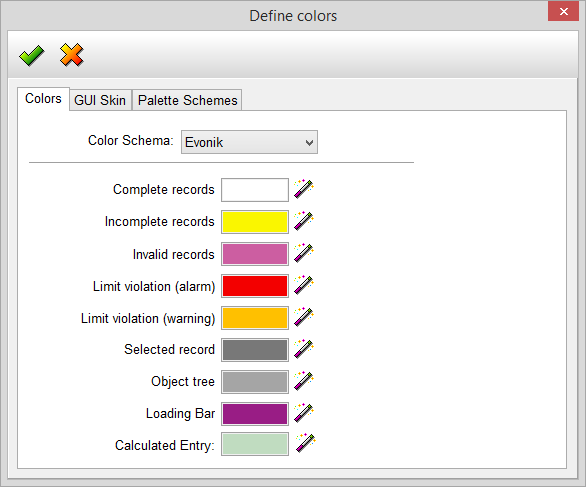
You can select a Color Schema to get the list of colors belonging to it. On the screenshot above, you
can see the colors of the Evonik schema. As you can see, each color has a purpose in signifying
something. All colors can be changed with a click on the  which will bring up the Color dialog.
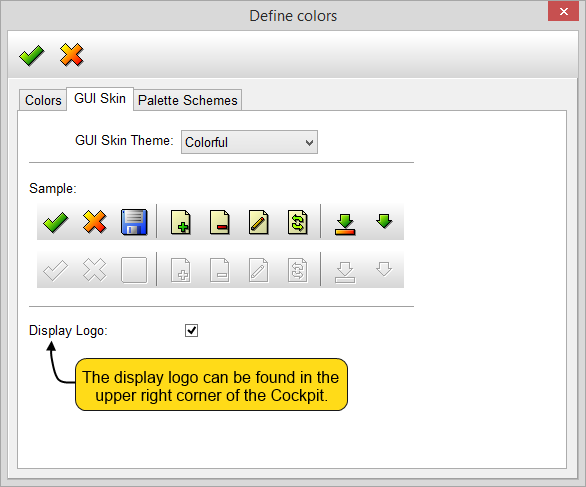
- purple
- colorful
- blue
By unmarking the box near the Display Logo, you can make your current logo disappear.
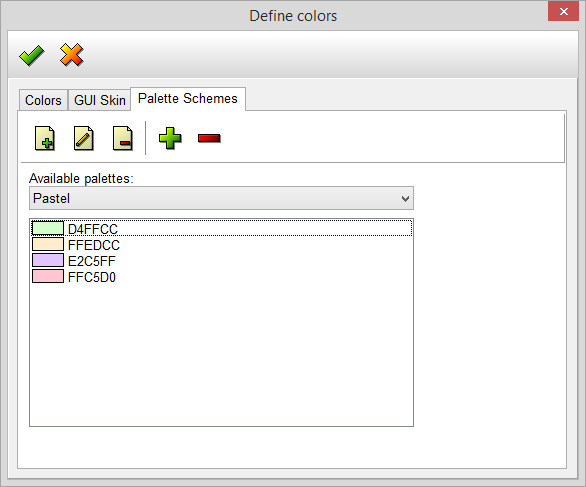
With the help of the Palette Schemes we can create new Color Schemas.
We can add a new palette with the  button, and then we can fill it up with colors, adding each
with the help of the  button and the appearing Color dialog.
Similarly, we can delete our palette with the  button and we can remove a color from a selected
palette with the  button.