¶ Products
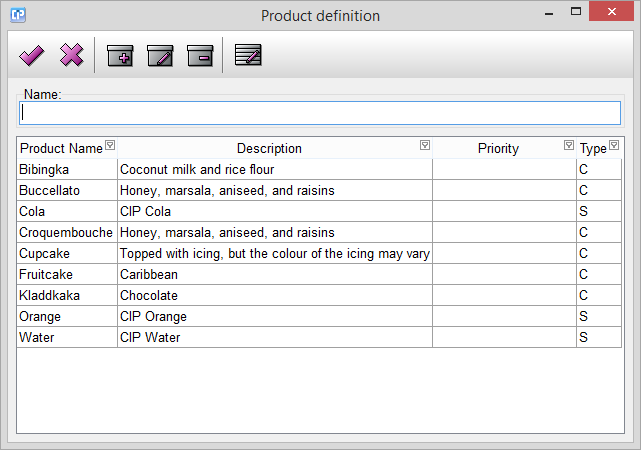
As you can see on the screenshot below, with the help of managing products, we can visualize a list of different
products found in our database.
In the presented case, the product list consists of cakes and drinks of the Cake Factory and Soda Factory.
Under the Description point, we can read about the particular product listed under Product Name.
With the help of the Priority feature, we can give priority values for the products. The higher the priority value,
the higher the product is positioned in the list. The products to which no priority value has been given, become
arranged in alphabetical order.
The type column gives the initials whether the prodict is from C (Cake Factory), or S (Soda Factory).
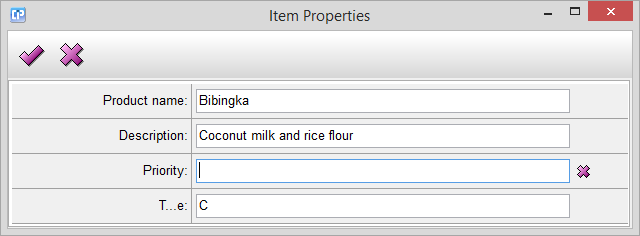
As you can see in the next screenshot, with the help of the  button, you can add a new product, or by
clicking on the  button, you can edit a previously selected one.
The data from the fields you fill will be visualized in your product list.
With the help of the  button, you are able to delete a previously selected product.
With the help of the  button you can create a new column in the product table.
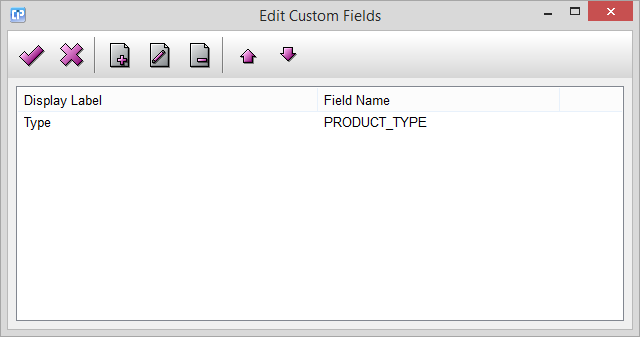
Click on the  button if you wish to create an entirely new column, or use the
 button to edit an already
existing one. This way, the Item Properties window will come up.
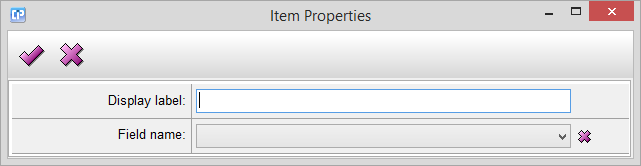
Give a title to your column by filling in the Display label gap, and choose a Field name from the list to specify
the data for each row.
If you manage to create an unwanted column, select it from the list in the Edit Custom Fields window and delete
it with the help of the  button.