¶ Filters
To restrict the currently shown data of any object, one can specify filters in a very general way via Administration -> Manage -> Filters. We can reach the filter button on the toolbar as well.
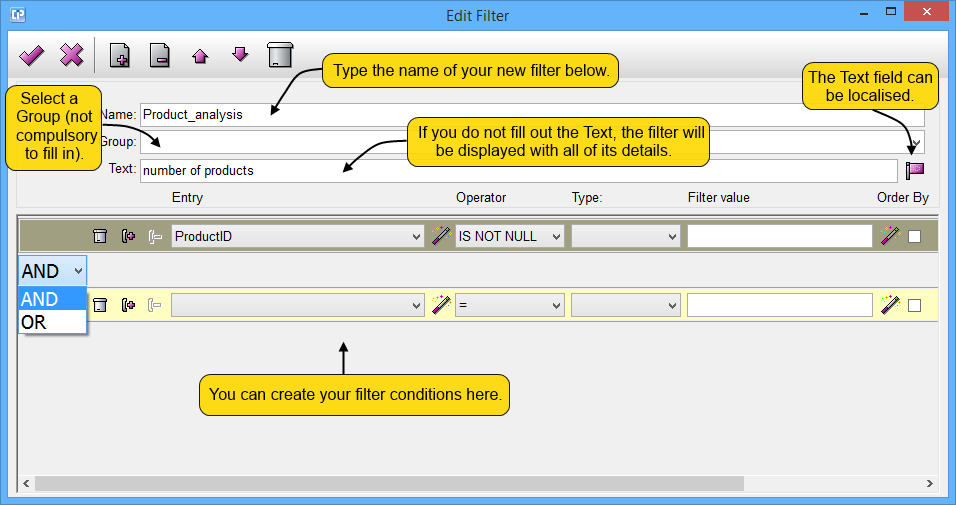
As you can see in the screenshot above, the filter can be built from an arbitrary number of conditions on entries that can be connected by Boolean AND and OR expressions.
The conditions specify the value of the entry by comparing it to either a static expression (like a number or a string literal),
a user input (which the user will then be automatically prompted for), or a formula. Please note that the filters also influence
the data basis for most of the graphics and reports.
¶ As you can see on the screenshot below, by adding a new filter, we have the following opportunities:

- With the help of the
 button, you can clear your filter list.
- With the
 and the
 buttons, you can create brackets. Make sure that when you open one at the left side of the filter list, you close it at the right side.
- With the
 and the
 you can remove brackets. Make sure that when you remove a bracket from a side of the filter list, do so at the other side as well.
- The
 button opens dialogs from which you can select entries and filter values. You can read about general entry selection by clicking here.
- Under the Entry column, your existing entries are listed. You can select from the list to create a new filter.
- The Operator column enables you to select an operator for your filter.
- The Type column gives you three opportunities to choose from.
- Under the Filter value column, you can type a value or you can use the wand and create a formula according to which your filter is going to work.
- The Order by column can help you to list the filtered data in an ascending or descending order.
¶ The Edit Filter Window's toolbar:

 - By clicking on this button, the window will close and your changes will be saved.
 - By clicking on this button, the window will close without any changes made.
 - Click on this button if you want to add a new filter to your entry.
 - Click on this button if you want to delete a previously selected condition.
 or
 - Cick on these buttons to move between the available conditions on your screen.
 - This button clears your filter list.